
Summary
This article describes server licensing, license installation and management.
Attention: For earlier InfoBurst versions, see License Management (pre-2023.1). |
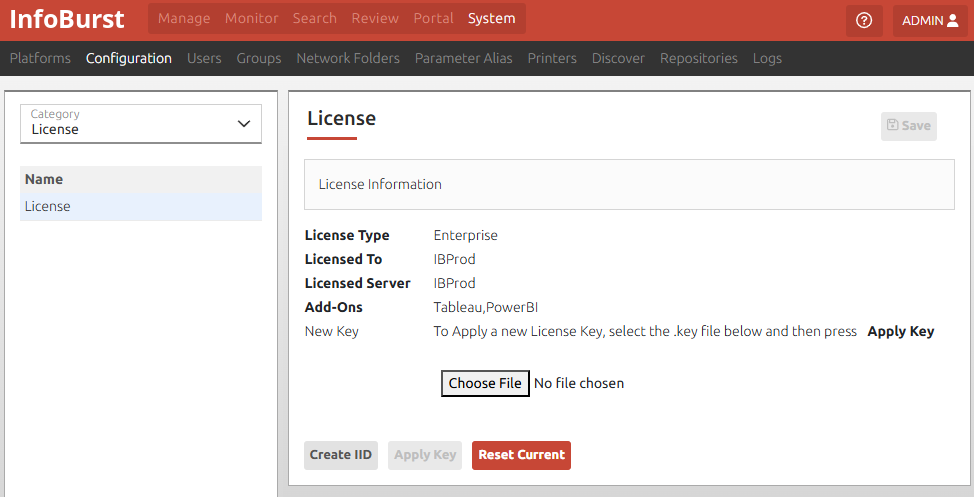
Request License Key
- Select System > Configuration > License
- Select Create IID to create and download IID file
- Create an InfoSol Help Desk ticket to request a license key, attach the .IID file, and define the type of server (production, test, or disaster recovery)
Key Management
Application of a license key requires a restart of the InfoBurst service. It is recommended that key application be planned for a period when no jobs are running.
Apply New License Key
- Select System > Configuration > License
- Select Choose File
- Select the key file then Open
- Select Apply Key then OK
- Select Restart InfoBurst Now then Continue
Replace Existing Key
- Select System > Configuration > License
- Select Reset Current then Continue
- Select Restart InfoBurst Now then Continue
- Log into InfoBurst
- Select System > Configuration > License
- Select Choose File
- Select the key file then Open
- Select Apply Key then OK
- Select Restart InfoBurst Now then Continue